
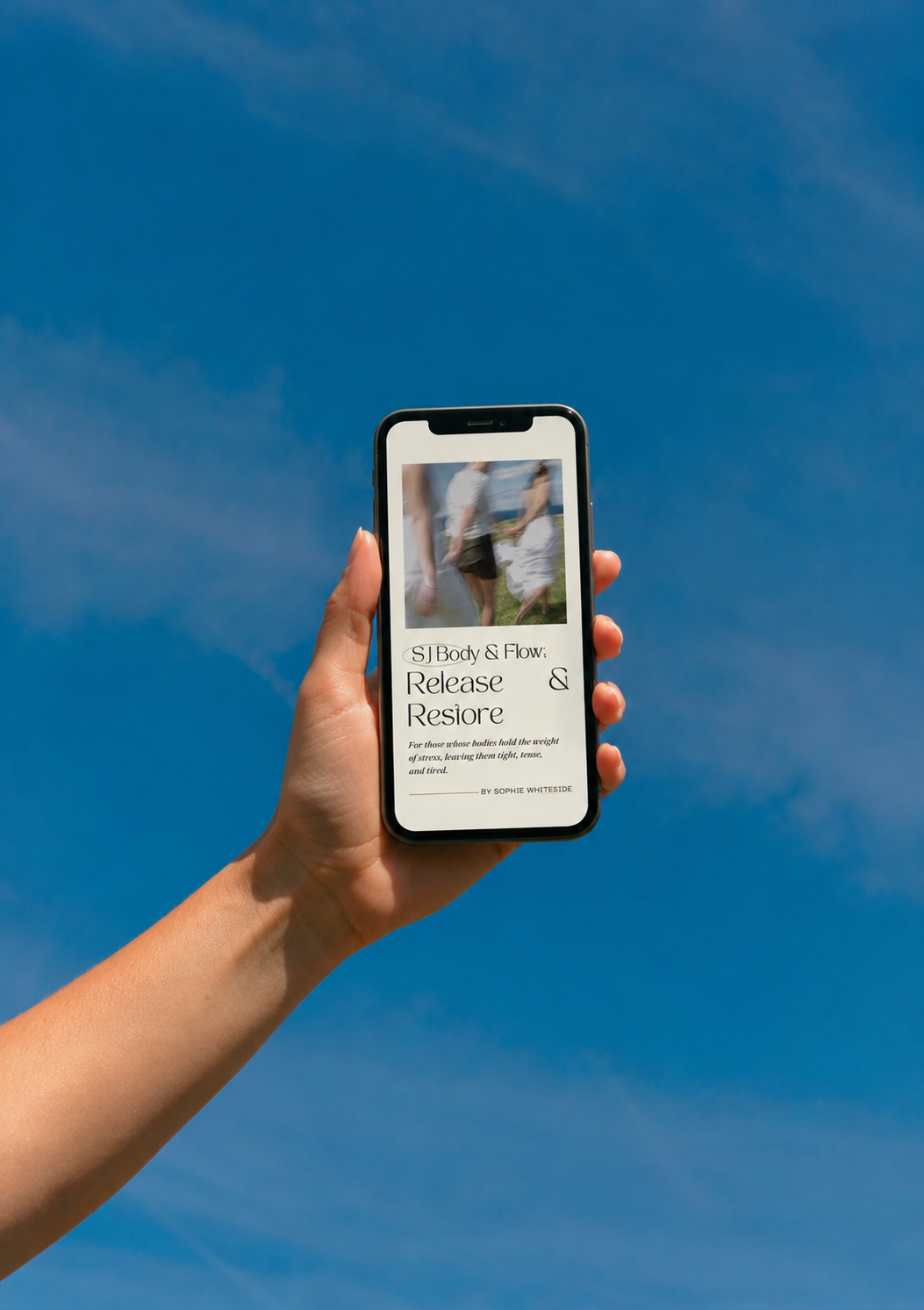
 Image 1 of 6
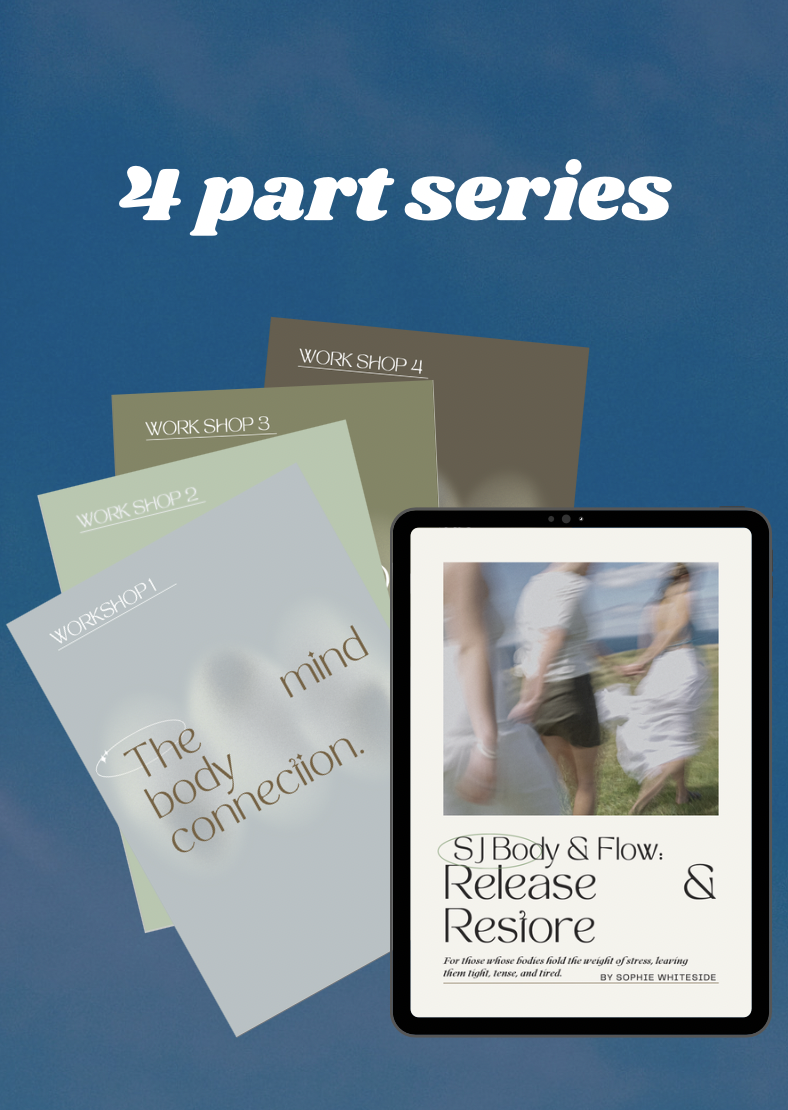 Image 2 of 6
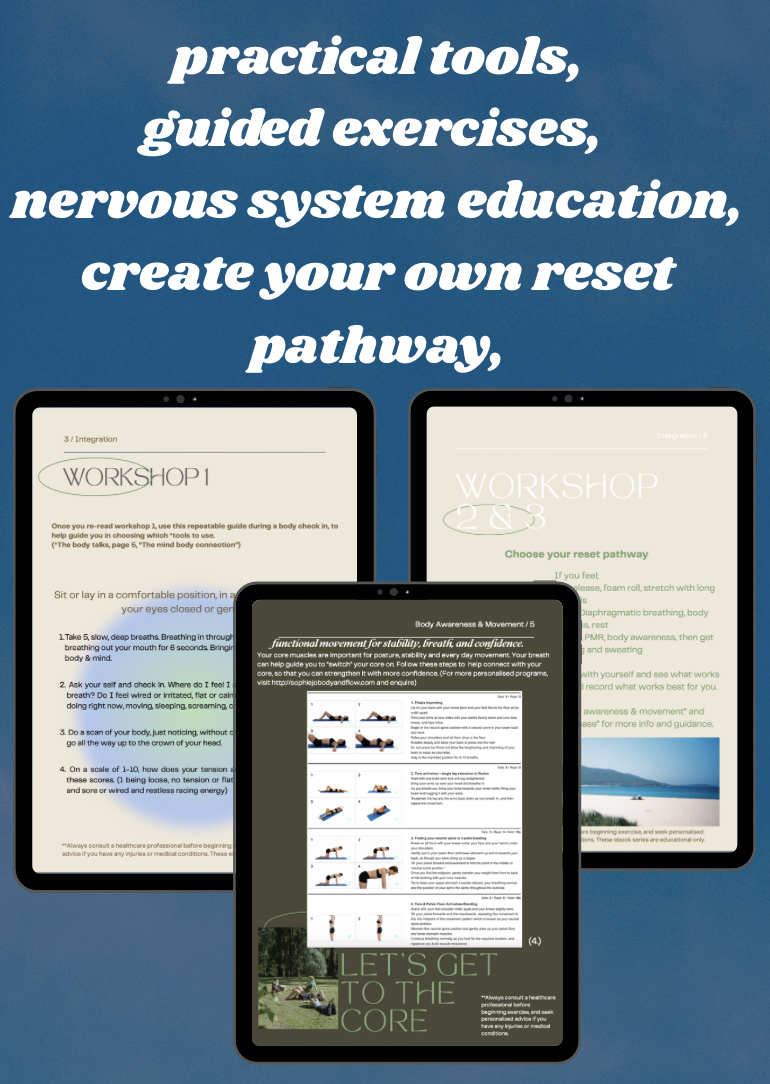 Image 3 of 6
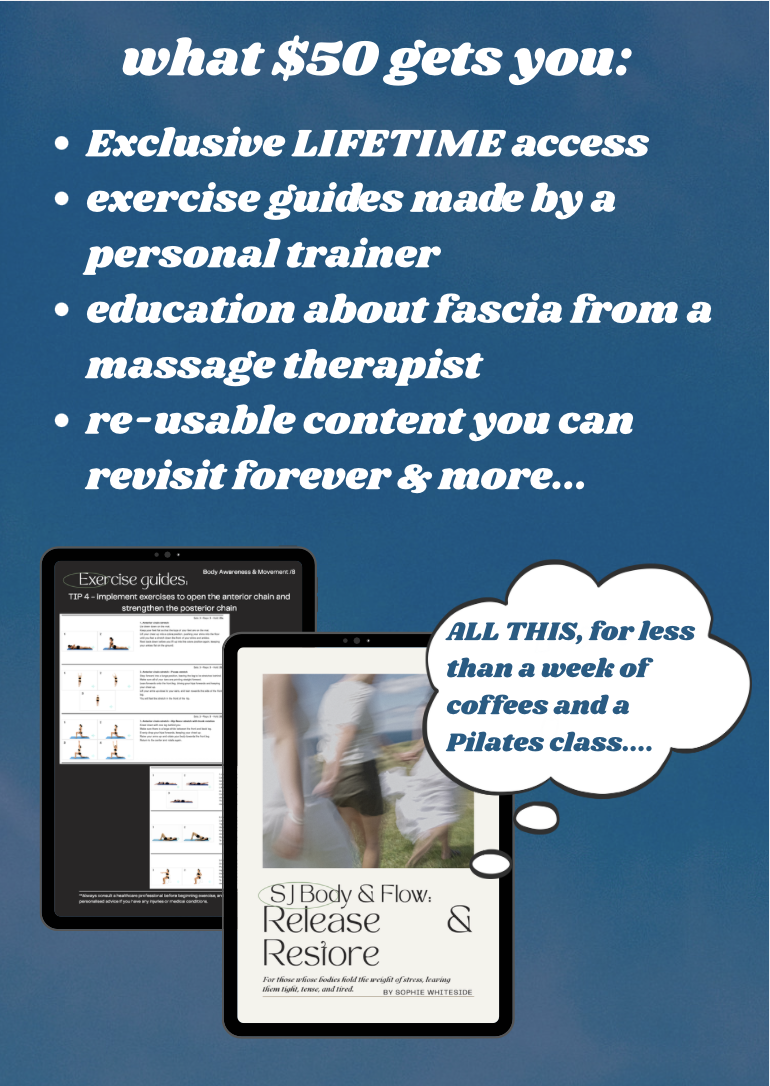 Image 4 of 6
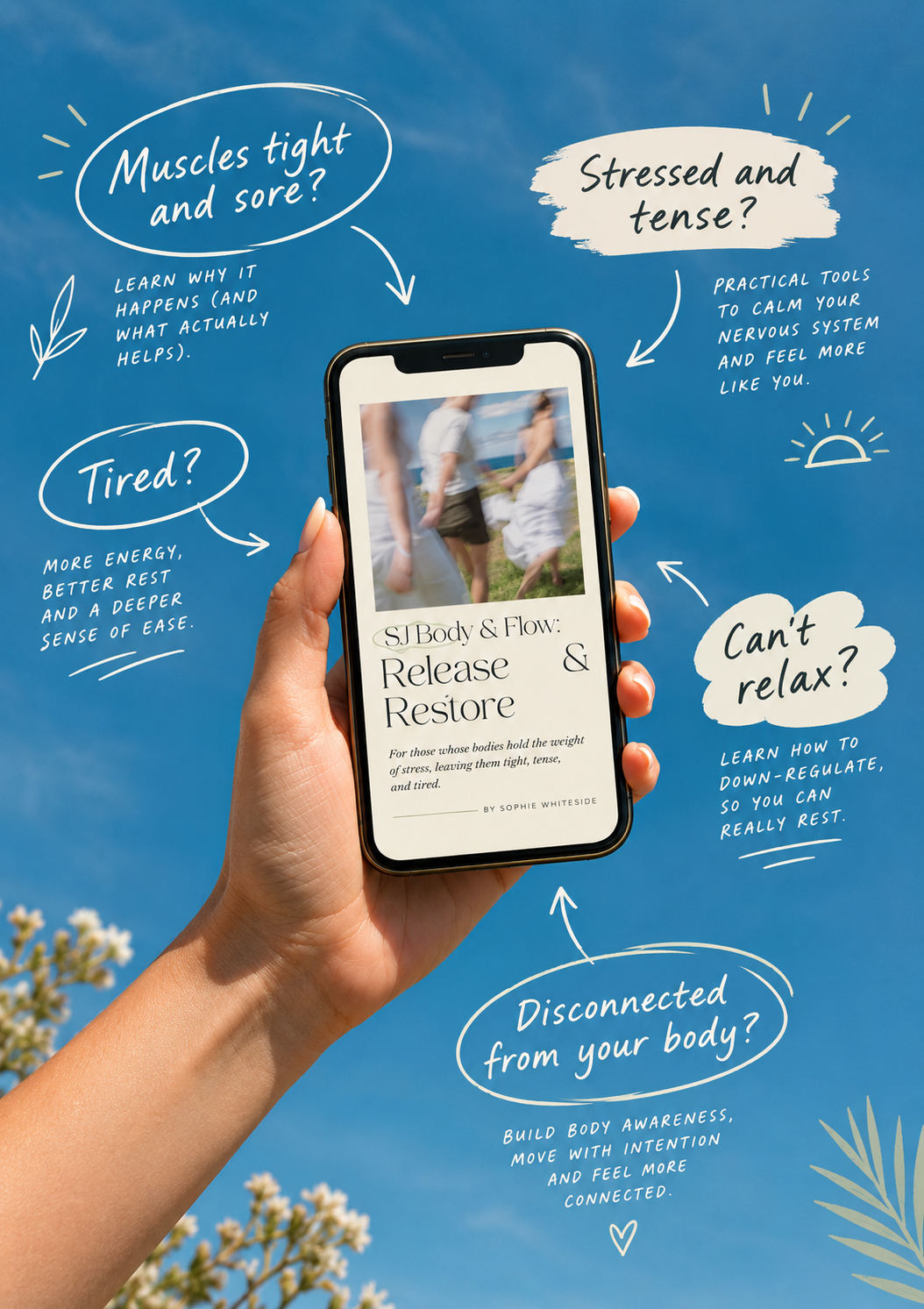 Image 5 of 6
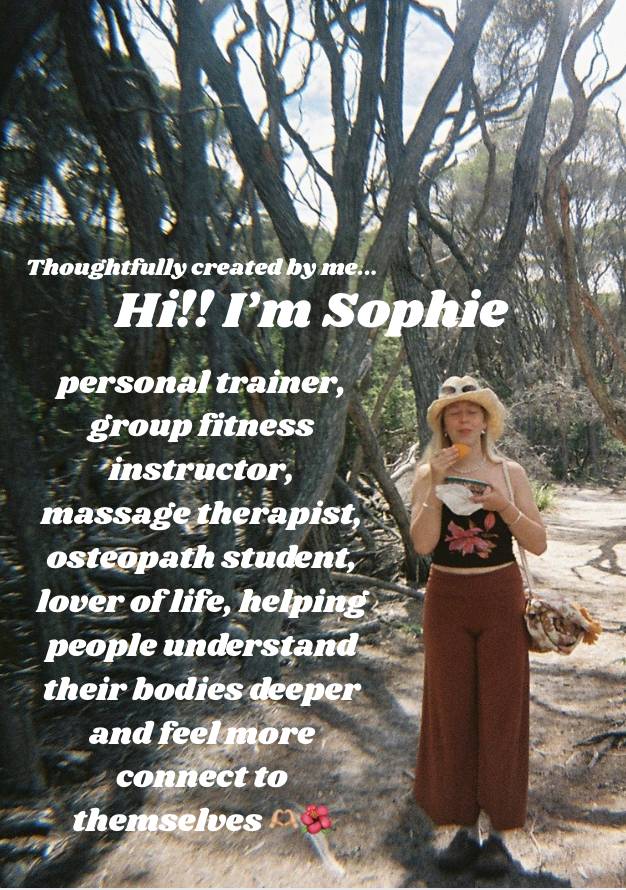 Image 6 of 6
-
This workshop / booklet and its supporting materials were written and researched by Sophie Whiteside, founder of Sophie Jo Body & Flow.
Sophie is a qualified Personal Trainer, Group Fitness Instructor, and Massage Therapist, currently completing a Bachelor of Osteopathy (graduating at the end of 2026). Her approach blends movement, education, and body awareness to help people reconnect with the mind, body, and soul, cultivate confidence in movement, and nurture a deeper connection to nature and long-term wellbeing.
-
The information shared in this workshop / booklet is for general educational purposes only and is not intended to replace individual medical advice, diagnosis, or treatment. Always consult your doctor, physiotherapist, or qualified healthcare provider before making changes to your exercise, lifestyle, or health routines, especially if you have an existing injury, condition, or concern.
Listen to your body and participate at your own comfort level. The guidance provided here is based on research, professional and personal experiences and current understanding of movement and wellbeing but may not be appropriate for every individual, and may not give desired effects.
-
Didn’t receive conformation or download email?
check the correct email was entered in
create an “allowlist'“ to receive emails from new addresses
How to create an “allowlist”;
Microsoft Outlook
Click the gear icon in the top-right corner to open Settings.
Select Mail from the left menu, then click Junk email.
Under the Senders section, go to Safe senders and domains and click Add safe sender.
Type the email
no-reply@squarespace.info or full domain you want to trust, press Enter, and click Save.
Gmail
Note: Gmail does not have a single-click "Safe Senders" button; instead, you create a filter that prevents messages from going to spam.
Open Gmail and click the gear icon in the upper right, then click See all settings.
Go to the Filters and Blocked Addresses tab.
Click Create a new filter.
In the From field, type the email address
or domain you want to whitelist.
Click Create filter.
Check the box that says "Never send it to Spam" and click Create filter again.
Tip: Adding the sender directly to your Google Contacts also helps tell Gmail you know the person.
Proton Mail
Click the gear icon in the top corner and select All settings.
Go to Filters in the menu.
Click Add address or domain and choose Allow.
Type the target email address no-reply@squarespace.info or domain and click Add address.
Apple Mail
Open Apple Mail and click Mail > Settings (or Preferences) in the top menu bar.
Navigate to the Rules tab and click Add Rule.
Name the rule (e.g., "Allowlist").
Set the conditions to check if the From address
no-reply@squarespace.info is equal to your trusted sender.
Set the action to Move Message to the Inbox and click OK